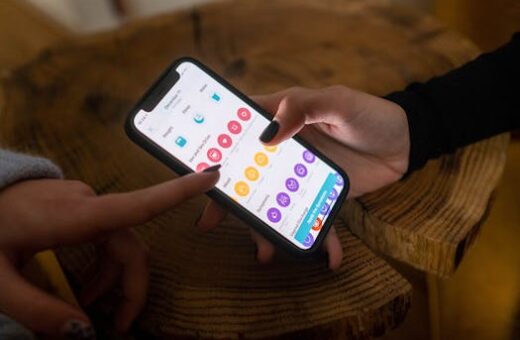
Reaching your goals throughout the day depends greatly on how you use technology. When you organize your smartphone, you can maximize productivity throughout your routine seamlessly.
Cluttered apps and endless notifications can hinder your effectiveness. Many users struggle to find important files or quickly access essential tools. Streamlining your device can make daily tasks smoother.
Some believe app folders or new widgets are enough, yet real productivity gains require intentional habits. Without a plan, digital clutter can quietly overwhelm your attention faster than you realize.
This guide provides concrete, actionable steps to help you organize your smartphone for lasting efficiency. Apply these strategies and watch your phone become a tool to maximize productivity.
Set a Clear Organization System for Your Smartphone Apps
Structuring your home screens with purpose immediately increases focus. Start with simple steps like grouping apps for faster access and smoother navigation.
Arrange your most-used apps on the first page, then create clearly labeled folders for similar tools. This visual distinction eliminates hesitation and boosts efficiency.
Sorting and Prioritizing Apps for Maximum Efficiency
Begin by removing unused or rarely touched apps. This clears space and helps you focus only on what’s important each day.
Sort productivity, communication, and entertainment apps into named folders. Title examples include Work, Personal, Social, or Finance to quickly identify purpose.
Counterintuitively, hiding distracting apps in a separate last page rather than deleting them can work better if you face FOMO or want easy retrieval later.
If you struggle with endless scrolling, say aloud: “I only need one screen for work, one for play.” This resets your intent instantly.
Implementing Widgets and Shortcuts Effectively
Widgets offer glanceable information and rapid actions. Add calendar, reminder, and to-do widgets to your home screen for visual productivity cues.
Most people crowd widgets chaotically, filling every space. What works better: select just two or three that directly support your daily workflow.
Create custom app shortcuts for recurring tasks, such as opening your calendar or setting a timer. Pin them where your thumb naturally rests for easier access.
Update your widgets every few weeks to reflect current needs. Remove those that no longer serve you. This habit helps maximize productivity as priorities shift.
Master Notification Management for a Calmer, Productive Mind
Deciding which alerts deserve your attention cuts down on stress. Start by customizing notification settings for each app in your smartphone settings menu.
Silence nonessential notifications, keeping buzzes only for priority apps like texts, emails, or calendar reminders. This minimizes distractions and supports deep focus.
Personalizing and Scheduling Notifications for Balance
First, review every app’s notification preference. Disable vibrations or sounds for all but essential contacts and tasks.
Schedule notification summaries at fixed intervals. For example, set your phone to relay all non-urgent alerts at lunchtime or before your evening wind-down.
Permissions matter. Grant messaging and calendar apps priority while revoking access from games and social platforms. This adjustment instantly boosts your ability to maximize productivity.
If notifications make you anxious, try this: Say “Pause all notifications except for emergencies.” Use Focus modes to make this practice stick.
- Review all notification settings once a month to adapt to changing habits. This habit ensures your alerts stay relevant and don’t become overwhelming distractions.
- Create custom Do Not Disturb schedules for meetings or focus blocks, so notifications won’t disrupt your workflow when you need to concentrate.
- Use notification channels to set granular rules, such as allowing finance updates but silencing social updates, giving you the best balance of awareness and peace.
- Pin important conversations in messaging apps. This places vital communications front and center while less urgent chats wait their turn.
- Experiment with notification badges only on select apps. This visual cue method lets you monitor progress without feeling constantly interrupted.
Feeling frazzled by alerts? Whenever you get overwhelmed, reset by enabling airplane mode for 15 minutes, assess which apps matter, and resume your work refreshed.
Utilize Digital Wellbeing Tools and Focus Features
Digital wellbeing tools help you regain control over your device usage. Start by exploring built-in features or download trusted third-party apps designed to support healthy screen habits.
Focus modes allow you to tailor your smartphone to work or rest, instantly cutting distractions by hiding games, news apps, and unnecessary widgets with just one tap.
Creating Productive Routines with Screen Time Data
Enable your device’s screen time or digital wellbeing dashboard to track your daily usage patterns. Regularly review the data to identify habits that eat up valuable hours.
Set app usage limits for the most distracting tools. For instance, you might allow only 30 minutes daily on social platforms to stay connected but not sidetracked.
Automate Do Not Disturb routines to trigger at certain times or locations, such as during your commute or after 9 p.m. This tactic safeguards your rest and productivity windows.
Sometimes, uninstalling and reinstalling apps periodically helps you reassess their value. Only restore those that consistently help you maximize productivity long-term.
Leveraging Automation and Reminders to Stay on Track
Use automation apps like Shortcuts or Tasker to simplify repetitive actions. Program routines to silence notifications at bedtime or launch productivity apps when you arrive at work.
Most people set endless reminders, then ignore them, causing alert fatigue. What works: limit yourself to three key reminders per day for top priorities.
Create morning and evening reminder routines: a checklist for tasks, hydration, and device wind-down. Personalize these to match your actual needs each week.
Edit or update automation rules monthly as your schedule shifts. Keeping things flexible allows your phone setup to truly maximize productivity as life evolves.
Keep Your Digital Files, Photos, and Documents Under Control
Efficient file management ensures quick access to information. Use your smartphone’s built-in file manager or trusted cloud apps for storing, sorting, and securing important documents.
Break large folders into smaller, purpose-driven sections such as Receipts, Health, and Projects. This reduces overwhelm and speeds up file retrieval for any need.
Organizing Photos with Albums and Cloud Sync
Create albums for key photo categories like Family, Events, and Work. Sort new pictures immediately to prevent future clutter.
Enable automatic backups to services like Google Photos or iCloud. This safeguards your memories in case of loss while making them accessible from other devices.
Delete blurry, duplicate, or no-longer-relevant images weekly. This keeps your gallery streamlined and free of time-wasting distractions.
If you hesitate to delete, ask yourself, “Will I need this photo next month?” Only keep images with genuine value. Let go of digital baggage guilt-free.
Managing Documents and Using Smart Search Features
Store key files in organized folders named by year, project, or client. Avoid the temptation to keep everything in generic download folders.
Leverage built-in search tools to quickly find any document by keyword or date. Master these features for rapid retrieval in meetings or urgent moments.
For contracts, travel papers, or schoolwork, scan papers into PDFs with your phone camera. Use auto-crop and naming tools to speed up filing.
Regularly audit your storage. Archive or delete files you no longer need. These habits keep your virtual file cabinet focused and clutter-free, helping maximize productivity daily.
| File/Photo Type | Suggested Folder/Album | Recommended Action |
|---|---|---|
| Travel Docs | Travel 2024 | Scan, label with dates, archive older copies |
| Receipts | Finance | Auto-upload to cloud, delete paper originals |
| Family Events | Family | Create digital albums, share safely |
| Work Projects | Projects | Sort by client, year, and status |
| School Docs | School | Export as PDF, group by semester |
Embrace Useful Productivity Apps and Cloud Services
Integrating the right apps and cloud services amplifies your phone’s ability to maximize productivity. Choose trusted tools that save time and synchronize across devices.
Start with a task manager or to-do list app. Popular options include Todoist, Microsoft To Do, or Google Tasks for simple, flexible planning.
Choosing and Customizing the Right Productivity Tools
Pick productivity apps that complement your unique workflow, not just those recommended by others. Test each tool for a week before committing long-term.
Customize app notifications and color schemes for clarity. This personal touch keeps important information visible and actionable while preventing visual overload.
Create automations within these apps, such as recurring reminders for bill payments or project updates. Automation saves you valuable cognitive energy every day.
Review your app list once a month. Remove tools that no longer serve your core goals and replace them with better-fit solutions.
Maximizing Benefits from Cloud Storage and Cross-Platform Sync
Cloud storage such as Google Drive, OneDrive, or Dropbox helps manage files and share data seamlessly across devices.
Organize cloud folders by team, project, or time frame. Label everything for immediate recognition even months later.
Enable automatic sync on all devices for notes, calendars, and photos. This provides secure access whether you’re on your phone, tablet, or computer.
Test sharing permissions with a colleague or family member before using for important documents. Adjust settings to prevent unauthorized access or accidental sharing.
Optimize Your Phone’s Settings for Peak Performance
Device performance affects how efficiently you maximize productivity. Optimize your phone by updating software, managing storage, and adjusting power settings regularly.
Clearing cache and uninstalling bloatware both result in a snappier overall experience. Make a habit of reviewing these settings monthly.
Managing Storage, Battery Life, and Security Settings
Set storage alerts to warn when space is low. Move large files to the cloud or external storage to keep your device running smoothly.
Enable battery optimization features such as adaptive brightness, scheduled power saving, and background process limits to prolong your device’s active hours.
Review your phone’s security settings. Activate biometric unlock, enable device location in case of loss, and install security updates as soon as they appear.
Regular audits prevent slowdowns and data risks. Proactively address any security notifications, which further helps maximize productivity and protect sensitive information.
Customizing Accessibility and Usability Features
Explore accessibility settings like font scaling, color contrast, or voice commands to reduce eye strain and make navigation faster.
Rearrange quick settings to include tools you use daily, such as flashlight, Bluetooth, or airplane mode. This little change saves time over hundreds of daily unlocks.
Test voice assistant shortcuts for opening apps, sending messages, or controlling smart home devices with fewer taps.
Add or remove settings as life changes. This ongoing adaptation ensures your smartphone always fits your workflow and supports your goal to maximize productivity.
- Keep accessibility features tailored to your needs. Review every month so your device stays comfortable and effective for all tasks.
- Pin essential quick settings for tools like hotspot, Wi-Fi toggles, or do not disturb for rapid adjustments throughout the day’s routines.
- Experiment with keyboard and navigation layouts for comfort. Find the arrangement that minimizes typing errors and improves speed.
- Personalize notification shade shortcuts for the most commonly accessed actions, boosting your ability to respond quickly.
- Minimize visual clutter in your settings menu by hiding less-used options. Streamlining your experience enhances your productive workflow over time.
Develop Habits That Amplify Your Productivity Every Day
Consistent habits transform smartphone organization into lasting results. Choose a few key routines to revisit every week, making small tweaks that build big changes over time.
Establish a weekly review checklist. Mark off actions like updating app layouts, reviewing notification settings, or clearing your photos each Sunday evening.
Building Productive Routines and Tracking Progress
Create a habit tracker app or use your phone calendar to log organizational habits. Celebrate consistent progress which will reinforce your desire to maximize productivity.
Share habits with friends or colleagues for accountability. Consider a friendly challenge to see who keeps their phone’s home screen cleanest for a month.
Record before-and-after screen shots to visualize how much cleaner your device looks and feels after implementing new strategies.
Schedule periodic digital declutters. Decluttering can feel tedious, but scheduling it on your calendar as a recurring monthly task reduces resistance and helps reinforce the habit.
Staying Motivated and Overcoming Setbacks
If you fall back into old habits, don’t feel discouraged. Plan for lapses by setting reminders to reassess your system and make adjustments as needed.
Use motivational wallpapers or lock screen quotes to reinforce your intention to maximize productivity. These small cues keep your mindset on track daily.
Recognize triggers for digital clutter, like downloading too many new apps or skipping your weekly review. Address these patterns with gentle, specific reminders.
If you miss a routine, give yourself a fresh start the next day. Progress is about building patterns, not achieving perfection right away.
Conclusion
Assessing and organizing your apps, notifications, and file management routines propels you closer to your productivity goals. These actions help your smartphone work as an extension of your intentions.
This sequence leverages technology’s strengths while minimizing distractions. Intentional structure and consistent tweaks ultimately help you maximize productivity every single day.
Skipping regular reviews or letting clutter build up is the hidden pitfall. Avoid it by scheduling weekly maintenance and rewarding small wins, so your system remains sharp.
Start your first 20-minute declutter now: group your core apps, silence one distracting notification, and schedule your next review. Your organized phone will help you work smarter, not harder.