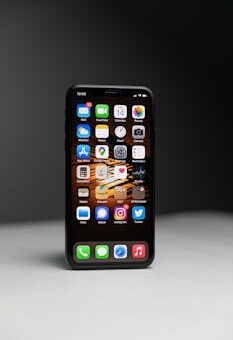
Mobile devices enable us to stay connected, informed, and entertained on the go. Navigating privacy settings on mobile devices is crucial for protecting personal information in everyday use.
Many users know privacy options exist but struggle to configure them correctly. Accidental leaks or data misuse frequently result from skipped steps or unclear settings.
Some believe that turning on a screen lock or app password covers everything. Unfortunately, this misconception leaves important settings unaddressed and personal data more exposed than expected.
This comprehensive guide promises actionable steps and clear tips to help you manage privacy settings on mobile devices with confidence, minimize risk, and ensure data safety daily.
User Choices: Why Are Privacy Settings on Mobile Devices Crucial?
Control over privacy settings on mobile devices ensures your texts, photos, and location stay private. It also helps avoid unwanted data tracking and targeted advertising.
Users value mobile privacy to secure identity, restrict app access, and manage personalized content. Not knowing how to adjust these settings may result in privacy lapses.
Understanding User Priorities in Privacy
Contrary to popular belief, users do want control but are deterred by confusing menus. Choosing to adjust privacy settings on mobile devices is not just tech-savvy behavior.
When someone skips reviewing permissions, apps may collect contacts or microphone input without actual need. This failure scenario can result in unexpected data use.
If this happens, navigate to device settings and review the permissions list. Remove access for apps that do not need it. The recovery script is: Tap Settings, select Apps, review Permissions, and toggle unnecessary ones off.
Interestingly, prioritizing location or camera controls can deliver peace of mind without any loss of device functions. Awareness around these choices continues to grow among all age groups.
Tools for Managing Privacy Settings Effectively
Every mobile platform provides privacy dashboards or permission managers. Most people click “Allow” without checking details. What really works is reviewing each prompt and selecting “Only while using the app.”
Alternatives like iOS Screen Time and Android Digital Wellbeing offer further controls. They help limit app permissions, restrict access, and show usage patterns for smarter privacy management.
Manual app-by-app reviews beat all-at-once switches. Differential permissions lets you keep safe apps fully enabled while restricting those known to share data with advertisers.
Combining built-in privacy dashboards with regular app audits creates stronger, layered protection. Review at least once monthly for ongoing privacy health.
Getting Started Right: Setting Up Privacy Defenses From Day One
Activating essential privacy settings on mobile devices increases data security instantly. Before using any device or app, consider the privacy settings menu as part of your startup checklist.
Begin with easy wins: screen locks, fingerprint setup, and a PIN for security. Next, move to app permissions to stop data oversharing from the start.
First Steps: Initial Device Setup and Privacy
As soon as you unbox your new phone, create a strong passcode or biometric login. This prevents unauthorized access if your device is lost or stolen.
During setup, choose which data to sync and which accounts to add. For every data-sharing prompt, opt out or limit syncing until you understand the need.
Allocate 20 minutes for a guided privacy tour. Read each permission request carefully. Apps often request camera, location, or contact access even if they do not truly need it.
Stop auto-enabling backup or cloud sync for sensitive documents or photos. Evaluate first: only enable syncing for items you want saved but not widely accessible.
- Ensure your lock screen only displays limited info to prevent data leakage if stolen. List what appears and why in your settings and adjust to minimum notification content.
- Set new app privacy to “ask each time.” This helps you understand what the app really does with your data, keeping control in your hands at all times.
- Change your default browser to one that blocks tracking cookies by default. It increases privacy without requiring technical expertise, and you can always switch later if needed.
- Disable Bluetooth and location services when not in use. These features are convenient but can reveal real-time location to unauthorized individuals or companies unless switched off.
- Establish a weekly reminder to review permissions and privacy logs. Regular review keeps your privacy settings on mobile devices tuned to your comfort level.
Many skip the first-day review and end up oversharing by default. If this happens, revisit settings under Apps and Privacy, then reset permissions to ask before granting new access.
Info Sharing: Balancing Conversations With Caution
Smart privacy settings on mobile devices empower safe sharing but require monitoring. Outcome: fewer unwanted data leaks and safer interactions with friends, family, and colleagues.
Enabling proper privacy defenses builds trust for group chats, video calls, and work collaboration. Conversely, public profiles or unfiltered contact lists may attract spam or scams.
Creating a Secure Profile
A good mobile profile uses a real name or nickname but omits specifics like full address or personal ID numbers. Script: “Hi, I’m Sam. I’m happy to connect—let’s keep details private for now.”
Do not list your street or full birthday in any app. Instead, select privacy options to hide personal fields and only show what you truly want public.
Two-thread opener: Start one message about interests, another about casual daily plans. This reduces pressure and lets the other person choose their comfort level.
Counterintuitively, using a recent casual photo without background clues increases safety. Avoid images that display house number plates, school logos, or unique landmarks.
Staying Safe With Built-In Protection Tools
Use privacy checkups in settings to review exposure risks: limit who sees your status or activity time. Set all social app sharing to friends or contacts only.
In case of harassment or spam, locate the report and block flow directly in app menus. Usually, there’s an option to flag content and restrict the user from further contact.
A simple privacy checklist: review display settings, toggle “last seen” to contacts-only, clear chat history monthly, and turn off location for nonessential apps.
Send boundary-setting messages early. Example: “I’m careful with what I share via messaging apps, so I prefer to keep chats about common interests only.”
| Feature | Recommended Setting | Purpose |
|---|---|---|
| Screen Lock | Enabled (Password/Biometrics) | Prevents unauthorized access |
| App Permissions | Review and limit to necessary | Reduces data exposure risk |
| Location Settings | Off or “While using the app” | Protects whereabouts and travel data |
| Cloud Backup | Disable for sensitive data | Limits third-party access to private files |
| Ad Tracking | Disabled | Stops profiling for targeted ads |
Managing App and Device Permissions for Ultimate Privacy
Assigning correct permissions strengthens overall privacy. Letting every app control your camera or mic increases risks, so limiting these boosts safety.
Review all permissions every month and alongside each app update. This reduces chances of hidden changes or default-widened access after updates.
For communication apps, select custom contact lists instead of giving access to all phone contacts. Adjust group sharing settings for added control.
Periodic permission checks are more valuable than one-time reviews. Set a recurring reminder to update and clean permissions across all apps together.
Never ignore notifications about new permission requests. View each pop-up carefully: tap “Deny” unless the app’s function truly depends on the access requested.
- Regularly revisit the privacy dashboard for new app requests, as some devices add features after system updates that default to a more open sharing model.
- Uninstall old or unused apps to minimize your digital footprint. Even dormant apps can leak data if granted permissions before, so clean up your home screen monthly.
- Before updating apps, check patch notes for privacy changes. Sometimes new features allow more data use, which can be controlled if you review permissions before updating.
- Keep sensitive media in apps that offer password or fingerprint-protected folders. Strong app security features prevent accidental leaks if the main phone lock is ever compromised.
- Be cautious with third-party keyboard apps. They may collect input history, including personal messages or passwords, and send them to external servers for analysis or ad targeting.
Cloud Backups and Data Sharing: Decide What Leaves Your Device
Managing cloud backups means balancing convenience and confidentiality. Immediate outcome: only select data types are shared for backup, securing sensitive files locally.
Backup settings control whether photos, chats, and documents are stored on remote servers. Carefully select which items are uploaded versus encrypted or left only on-device.
Use “selective sync” features to back up essential content while keeping private items local. Choose manual backup timing for highly sensitive data, rather than automated or continuous modes.
If you ever need to restore your device, double-check import options. Select “custom” restore to prevent older, unwanted cloud-synced files from returning to your new device.
Store critical files in encrypted folders. Most major platforms support folder encryption or trusted app vaults for an additional privacy layer over default backup solutions.
Social Media and Messaging: Protecting Privacy in Conversations
Using privacy settings on mobile devices for social media and messaging apps prevents personal stories from leaking publicly. Enable private profiles and control who can message you directly.
Limit comment, posting, and tagging permissions to accepted friends or groups. Turn off public timeline updates to discourage information scraping by nonfriends.
For messaging apps, use disappearing messages or chat lock options. These features increase privacy and can be customized by chat or group for extra protection.
Report and mute unknown or suspicious contacts immediately. Always use “block” for persistent problems or suspicious messages, keeping your digital circle healthy and positive.
Adjust privacy settings after every app update. Apps occasionally add new options, so regular checks prevent accidental oversharing with each version change.
Children, Family, and Shared Devices: Custom Controls for Every User
Customized privacy settings on mobile devices ensure safer use for kids, teens, and dependent adults. Enable profile restrictions and content filters as standard practice.
Set up user profiles for each family member. This prevents cross-access to messages, downloads, or browsing histories while allowing essential apps as needed by age group.
Time-based limitations and app scheduling help maintain healthy device routines. Review activity logs to spot new app installations or permission changes weekly.
Activate parental controls in kid-friendly platforms, including game and streaming apps. Most services feature detailed privacy and communication setting options suitable for different ages.
Keep educational apps approved and block app stores from auto-approving downloads. Review family purchase histories to verify privacy guardrails are working as intended.
Conclusion
Begin with lock screens, permission reviews, selective backup, strict social controls, and user-specific profiles. Each step in privacy settings on mobile devices increases digital safety right away.
This approach works because it layers protection. Reviewing regularly and responding to updates ensures you stay ahead of evolving threats and new privacy features.
Subtle pitfall: skipping scheduled privacy audits allows hidden settings or apps to compromise your data unexpectedly. Set calendar reminders to scan your device privacy monthly to avoid this issue.
Make it a habit: “I’ll review my mobile device’s privacy settings at the start of every month to keep my information protected and secure.”